GoDaddy Delegate Access
Grant Black Tiger Digital Delegate Access to Your GoDaddy Domains
Follow the steps below. It takes about 2 minutes. Once you send the invite, we accept and start helping manage your domain.
Delegate access does not change ownership. You stay in full control of your account and domains.
Why This Matters
This Is How We Help Manage Your Domain
Your domain is the foundation of your online presence. DNS records, nameservers, and domain settings all affect how your website and email work.
Delegate access lets us manage DNS records, point your domain to the right hosting, configure email settings, and troubleshoot issues without needing your GoDaddy password.
Access Requested
Level: Domains Only
“Domains Only” access lets us manage domain settings without touching anything else. We cannot see billing, hosting products, or your personal information.
No GoDaddy account needed on our end: the person you invite receives an email. If they do not have a GoDaddy account, GoDaddy asks them to create a free one to accept.
Best practice: use delegate access instead of sharing your login. It is more secure and gives you full control over what others can see and do.
What Access We Need
“Domains Only” Keeps Things Simple and Secure
We only ask for what we need. Domains Only lets us manage your domain settings without touching anything else in your GoDaddy account.
- DNS record management
- Nameserver configuration
- Domain forwarding
- Subdomain setup
- Email routing (MX records)
- SSL/TLS verification records
- Domain troubleshooting
- Your payment methods
- Your GoDaddy password
- Hosting products
- Email accounts
- Account billing info
- Domain transfers to another registrar
- Other GoDaddy products
Revoke anytime: you can change or remove our delegate access at any time from the same Delegate Access page. No need to contact us first.
Step-by-Step Guide
Grant Delegate Access in GoDaddy
Follow these steps in order. Each includes a screenshot so you can match what you see on screen.
Pro tip: open this page on one screen (or your phone) and GoDaddy on another, then follow along step by step.
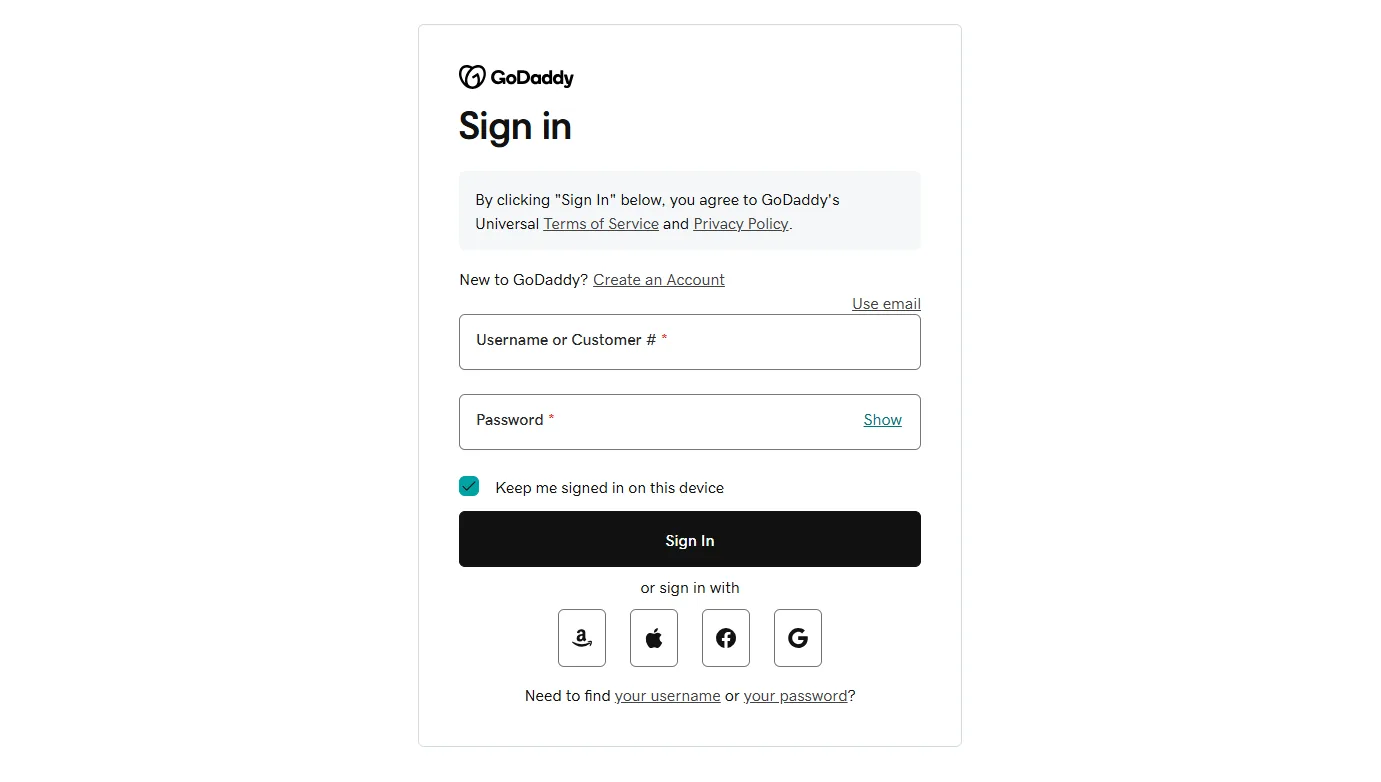
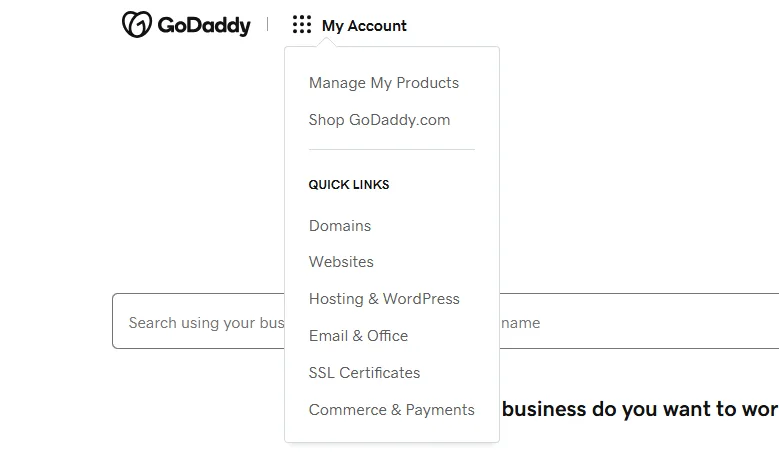
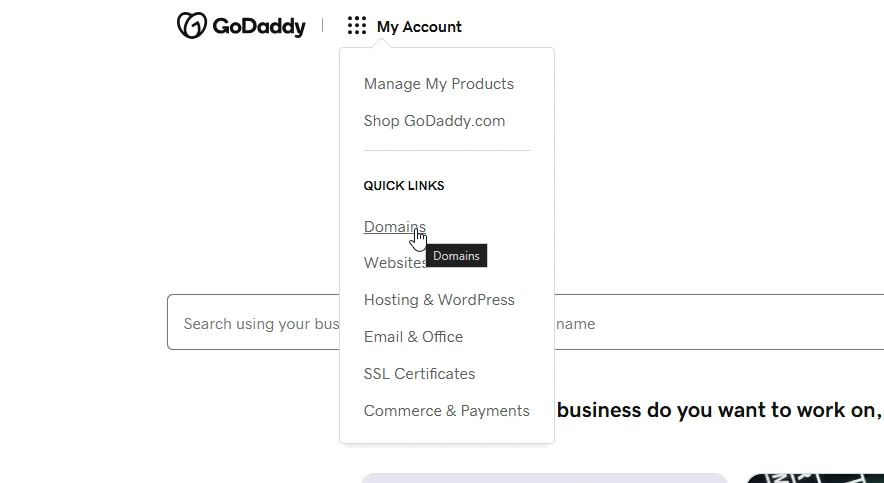
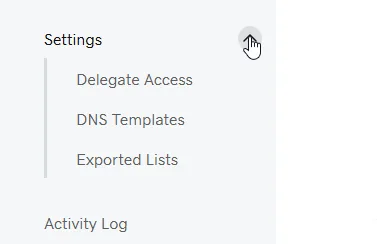
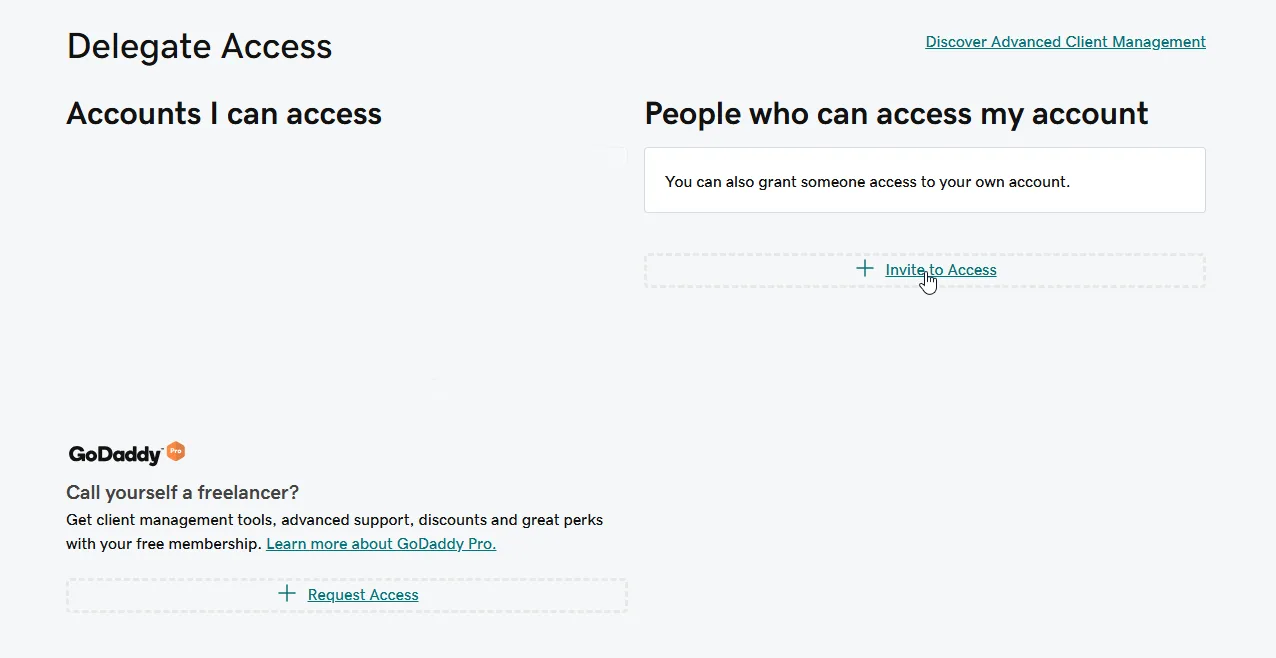
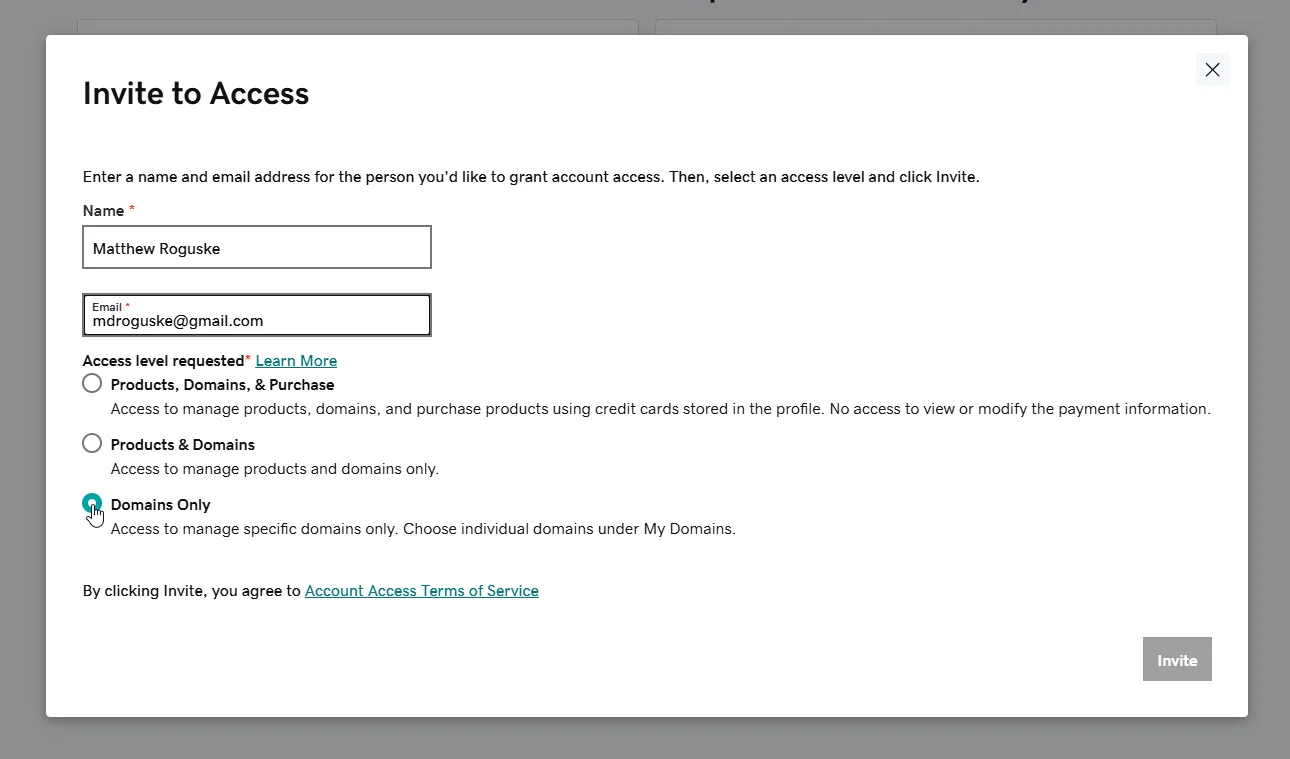
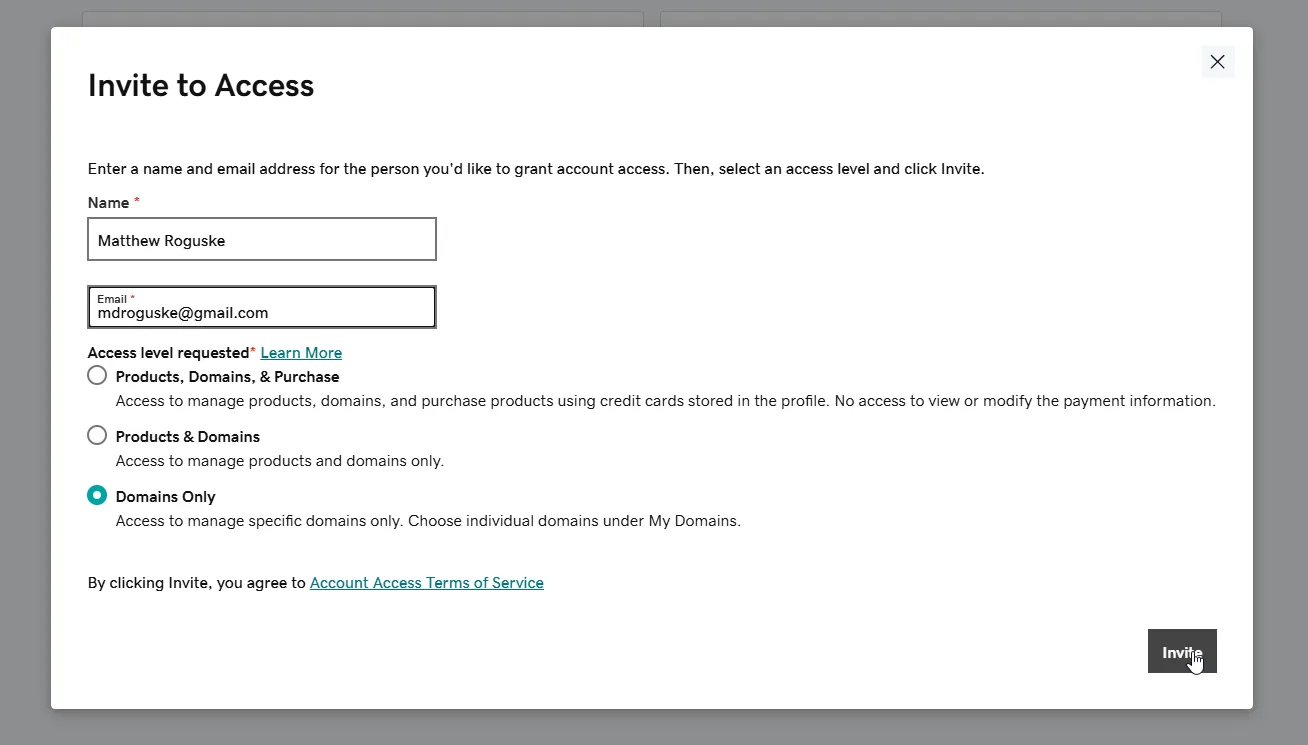
After sending the invite, you should see our name on your Delegate Access page with a “Pending” status. Once we accept (usually the same business day), the status updates and we can begin managing your domain.
Troubleshooting
If Something Looks Different
The most common questions when setting up delegate access in GoDaddy.
I cannot find the Delegate Access page
Try going directly to godaddy.com/account/settings and looking for Delegate Access in the sidebar or settings menu. GoDaddy updates their interface from time to time, so the exact path may vary. You can also search “delegate access” in GoDaddy’s help center.
Does the person I invite need a GoDaddy account?
They need one to accept the invitation, but not when you send it. GoDaddy prompts them to create a free account when they click the invitation link. Go ahead and send the invite using the email address above.
What is the difference between access levels?
GoDaddy offers several access levels. Domains Only is what we need: it limits access to domain management only. Broader levels like “Products, Domains and Purchase” or “Full Access” are not necessary for domain work. Stick with Domains Only unless we specifically ask for something else.
How long does it take for you to accept the invitation?
Usually the same business day. We check for invitations regularly during business hours, Monday through Sunday, 9 AM to 9 PM Eastern. Once we accept, you will see us listed on your Delegate Access page.
Can I remove delegate access later?
Yes, at any time. Go back to the Delegate Access page in your GoDaddy settings, find the delegate you want to remove, and click the option to remove or revoke access. The delegate is not notified when you make changes. You can also change the access level instead of removing it entirely.
Can a delegate transfer my domain away?
No. Delegates cannot accept incoming domain transfers from another registrar or GoDaddy account, and they cannot access your payment methods or passwords. Ownership stays with you. This is a key reason delegate access is the safest way to let someone help manage your domains.
Send us a screenshot of what you see and we will walk you through it. Sometimes GoDaddy moves things around, and a screenshot helps us point you in the right direction fast.
Once You Send the Invite, We Move
After access is confirmed, we start managing your domain settings, DNS, and whatever else needs attention. Your domain starts working the way it should.
- Fast acceptance
- Same-day response
- No runaround